


Introduction
Minecraft looks like a simple game made of blocks, but don’t let the “retro” aesthetic fool you. Under the hood, it is a resource-hungry beast, especially if you are running modern versions like 1.21 or playing with heavy modpacks. If you’ve ever experienced those annoying lag spikes or the dreaded “Out of Memory” screen, you know exactly how frustrating it can be.
The default setting for Minecraft usually allocates only 2GB of RAM. While that might have been enough back in 2012, it simply doesn’t cut it today. Whether you’re building massive redstone contraptions or exploring endless biomes with shaders, your PC needs more “breathing room.”
In this guide, I’m going to show you exactly how to allocate more RAM to Minecraft. We’ll cover the official launcher, CurseForge, and even specialized launchers. No tech-heavy jargon—just simple steps to get your game running buttery smooth.
Table of Contents
-
Why Should You Allocate More RAM?
-
How Much RAM is Too Much? (The Sweet Spot)
-
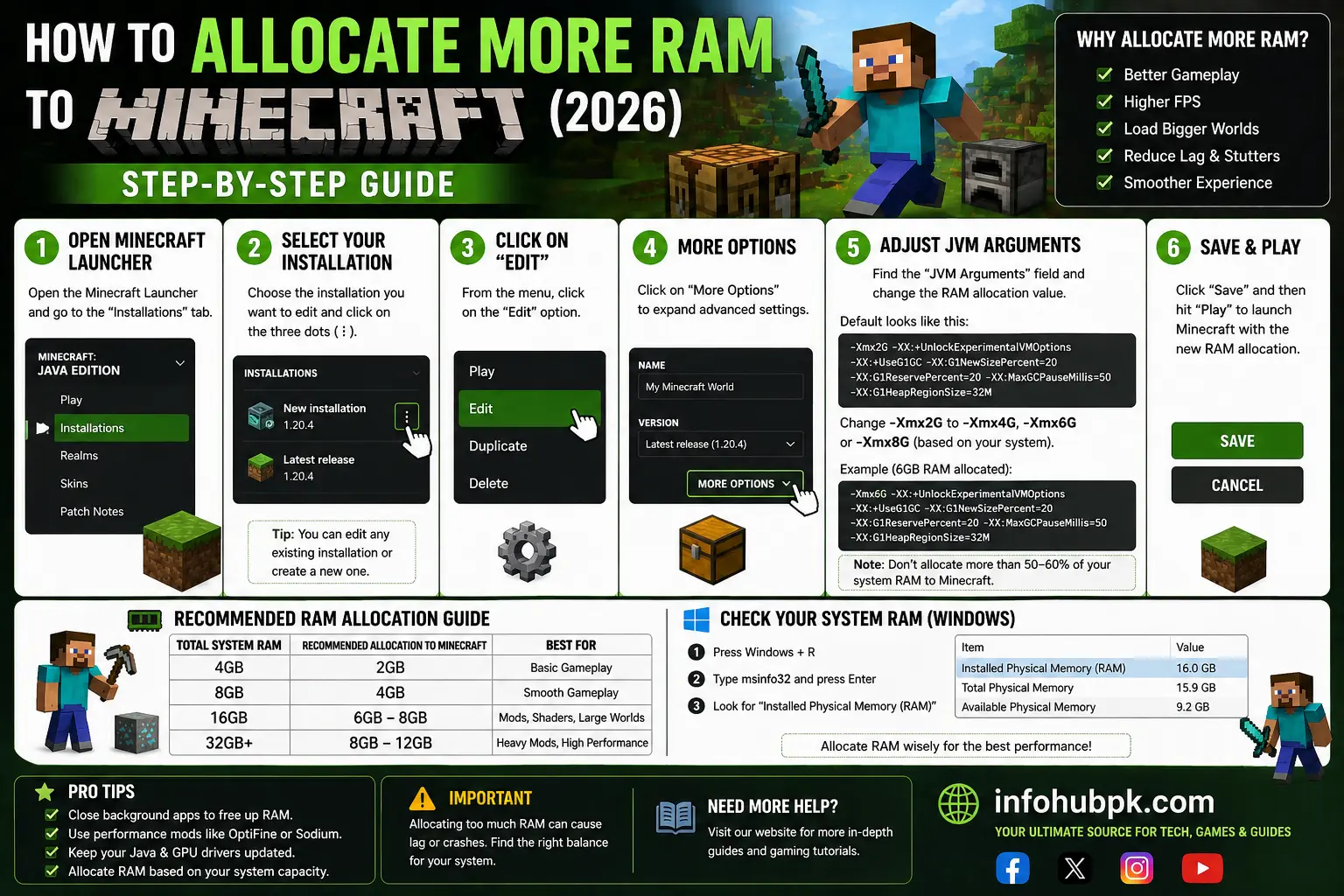
How to Allocate RAM in the Official Launcher
-
Allocating RAM via CurseForge
-
Troubleshooting Common RAM Issues
-
Frequently Asked Questions (FAQs)
Why Should You Allocate More RAM?
Minecraft runs on Java. When Java doesn’t have enough memory (RAM), it has to constantly “clean up” data to make room for new information. This process is called Garbage Collection, and it’s the main reason you see those micro-stutters every few seconds.
By increasing the RAM allocation, you allow the game to store more chunks, entities, and textures in your memory. This results in:
-
Higher FPS: Smoother frame rates during gameplay.
-
Faster World Loading: Chunks will appear much quicker.
-
Stability: No more “Out of Memory” crashes.
-
Better Mod Support: Essential for running shaders or 100+ mods.
How Much RAM is Too Much?
A common mistake is giving Minecraft all your RAM. If you have 16GB of RAM and you give Minecraft 14GB, your Windows OS will starve, causing your whole computer to freeze.
| Your Total System RAM | Recommended for Vanilla | Recommended for Modded |
| 8 GB | 4 GB | 6 GB |
| 16 GB | 4 GB | 8 GB |
| 32 GB | 4 GB | 12 GB |
Pro Tip: Never exceed half of your total system RAM for a single game.
Step-by-Step: Official Minecraft Launcher
Most players use the standard launcher. Here is how you tweak it:
-
Open the Launcher: Start the Minecraft Launcher but don’t hit “Play” yet.
-
Go to Installations: Click the Installations tab at the top menu.
-
Edit Version: Hover over your version (e.g., Latest Release) and click the three dots
..., then select Edit. -
More Options: Click the More Options link at the bottom.
-
JVM Arguments: Look for the text box at the very bottom. You will see a string of code starting with
-Xmx2G. -
Change the Value: Change the
2to a4(for 4GB) or8(for 8GB). It should look like-Xmx4G. -
Save: Click the green Save button.
Allocating RAM via CurseForge
If you play modded Minecraft, you likely use CurseForge. It’s even easier here:
-
Open the CurseForge App.
-
Click the Settings (gear icon) in the bottom left corner.
-
Select Minecraft from the sidebar.
-
Scroll down to Java Settings.
-
Use the Allocated Memory slider to choose your RAM amount.
-
CurseForge will automatically apply this to all your modpacks.
Common Mistakes to Avoid
-
Over-Allocation: Giving too much RAM can actually decrease performance because Java takes longer to clean up the memory.
-
32-bit Java: Ensure you are using 64-bit Java. The 32-bit version cannot use more than 1GB of RAM regardless of your settings.
-
Background Apps: Close Chrome or Discord if you are low on RAM to give Minecraft priority.
FAQs
1. Does more RAM increase my FPS?
It stabilizes your FPS. It won’t turn a slow PC into a supercomputer, but it will stop the freezing and stuttering caused by memory limits.
2. Is 8GB of RAM too much for Minecraft?
For “Vanilla” (no mods), 8GB is overkill. 4GB is perfect. For heavy modpacks like RLCraft, 8GB is the minimum requirement.
3. Why does my Minecraft crash after I add more RAM?
This usually means you allocated more RAM than your computer actually has available. Try lowering the number by 1-2GB.
4. Does this work on Minecraft Bedrock?
No. This guide is for Java Edition. Bedrock Edition (Windows Store) manages its own memory automatically.
5. How do I see RAM usage in-game?
Press F3 on your keyboard while playing. Look at the top right corner; it will show exactly how much memory is being used in real-time.
Internal & External Links
-
Internal: Read our guide on How to Install Shaders in Minecraft 2026.
-
Internal: Check out the Top 10 Best Minecraft Seeds for Survival.
-
External: Download the latest Java 64-bit for better performance.
-
External: Check out CurseForge for the best modpacks.
