


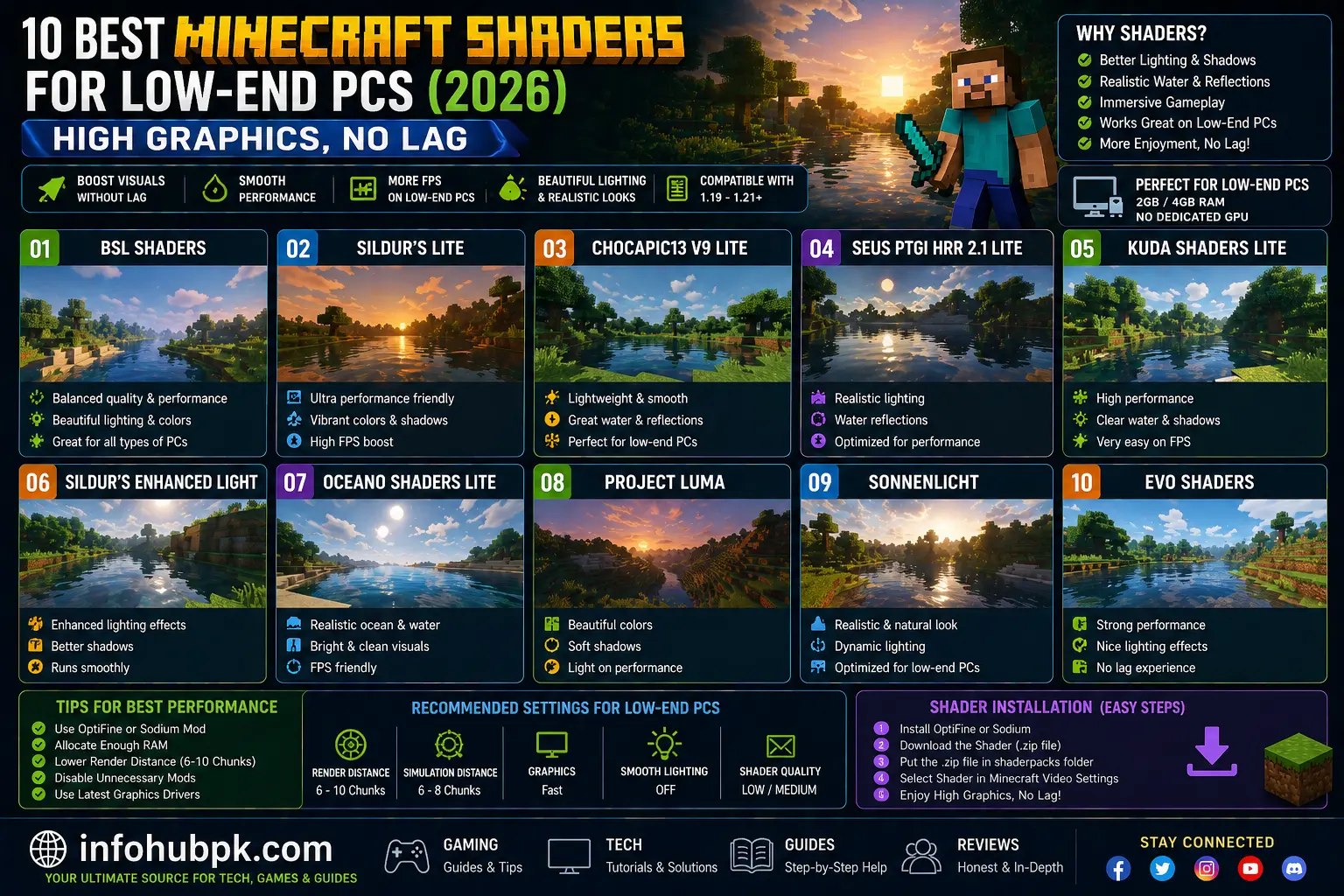
Minecraft is beautiful in its own blocky way, but let’s be honest—the default lighting can feel a bit dull after a while. Most players dream of seeing realistic water, waving grass, and cinematic sunsets. Usually, that requires a $2,000 gaming rig, right? Wrong.
In 2026, shader optimization has come a long way. You don’t need an RTX 4090 to make your world look stunning. Whether you are playing on a laptop with integrated graphics or an older desktop with 4GB of RAM, there is a shader pack out there designed specifically for you.
In this guide, we are diving into the absolute best Minecraft shaders for low-end PCs. I’ve personally tested these to ensure they provide the best balance between “eye candy” and “frames per second” (FPS). Let’s turn your vanilla world into a masterpiece without melting your CPU.
Table of Contents
-
What are Shaders and How Do They Work?
-
Top 5 Best Shaders for Low-End PCs
-
Best Optimization Mods (Sodium vs. Optifine)
-
How to Install Shaders on a Weak PC
-
Best Settings for Maximum FPS
-
FAQs
Top 5 Best Shaders for Low-End PCs
1. Sildur’s Vibrant Shaders (Lite Version)
Sildur’s has been a community favorite for years for one reason: customization. The “Lite” version is specifically built for older computers. It adds beautiful yellow sunlight and waving leaves without killing your performance.
-
Best for: Laptops and older desktops.
-
Pros: Very stable, works with almost all versions.
2. Tea Shaders (Low End)
If you want a subtle improvement that feels like “Vanilla+,” Tea Shaders is the winner. it doesn’t try to add heavy shadows or reflections. Instead, it improves the water color and adds a soft fog that makes the world feel alive.
-
Best for: Integrated graphics (Intel UHD/Iris Xe).
-
Pros: Extremely lightweight; almost zero FPS drop.
3. MakeUp – Ultra Fast
This shader is built with one goal: speed. It allows you to toggle off almost every feature. If your PC is struggling, you can turn off shadows but keep the beautiful waving plants and better sky.
-
Best for: PCs with 4GB RAM.
-
Pros: Highly modular settings.
Performance Comparison Table
| Shader Name | Visual Style | FPS Impact | Minimum RAM |
| Sildur’s Lite | Vibrant/Warm | Low | 4 GB |
| Tea Shaders | Vanilla+ | Very Low | 2 GB |
| MakeUp Ultra Fast | Realistic | Low | 4 GB |
| Chocapic13 Toaster | Cinematic | Medium | 4 GB |
How to Install Shaders on a Weak PC
To run shaders effectively on a low-end system, I highly recommend using Iris + Sodium instead of Optifine. Sodium provides a massive FPS boost that gives you more “room” to run shaders.
-
Download Iris Installer: Go to the official Iris Shaders website.
-
Install: Choose your Minecraft version and click “Install.” It will create a new profile in your launcher.
-
Add Shaders: Open Minecraft, go to Options > Video Settings > Shader Packs.
-
Folder: Click “Open Shader Pack Folder” and drop your downloaded
.zipshader files there. -
Select: Choose the shader in-game and hit Apply.
FAQs
1. Can I run shaders without a dedicated Graphics Card?
Yes! Shaders like “Tea Shaders” or “Sildur’s Lite” are designed to work on integrated graphics found in most modern laptops.
2. Why is my game crashing when I enable shaders?
This usually happens due to low RAM. Make sure you have allocated at least 4GB of RAM to Minecraft (check our previous guide!).
3. Which is better for FPS: Optifine or Iris?
In 2026, Iris (combined with Sodium) is much faster and provides better FPS than Optifine for most users.
4. Will shaders work on Minecraft Bedrock?
Most shaders in this list are for Java Edition. For Bedrock, you need “RenderDragon” compatible packs.
5. Do shaders work on servers?
Yes, shaders are “client-side,” meaning they only affect your screen and will work on any server.
Internal & External Links
-
Internal Guide: How to Allocate More RAM to Minecraft — Must read to avoid shader crashes.
-
Internal Guide: Top 10 Best Minecraft Seeds for Survival — See these seeds with new shaders.
-
External Link: Download Iris Shaders — The best way to run shaders in 2026.
-
External Link: Sildur’s Official Site — Download the Lite version here.
