


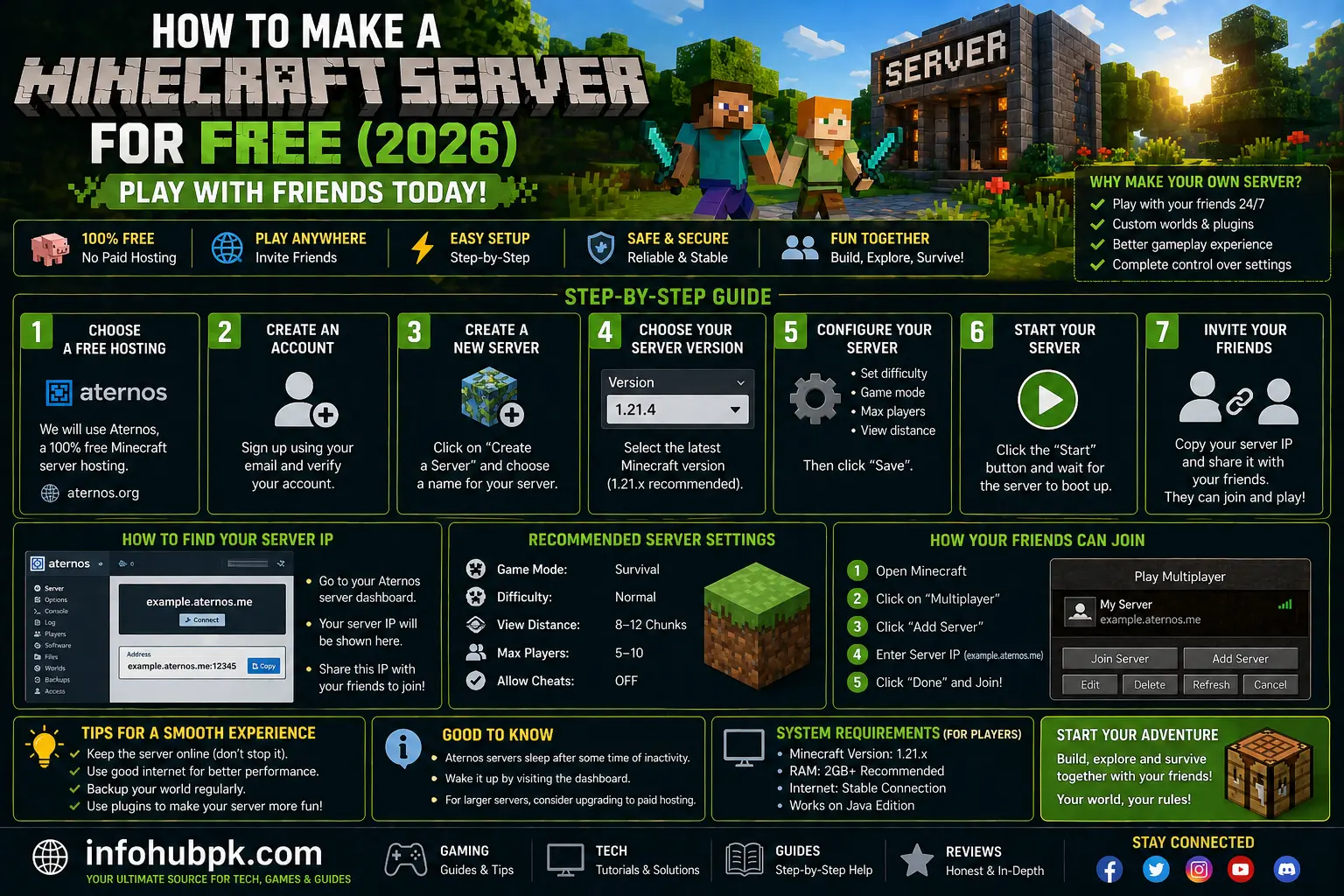
Minecraft is a world of endless possibilities, but let’s be real—it’s ten times better when you’re playing with friends. Whether you want to start a massive survival kingdom or a simple creative project, you’re going to need a server. However, not everyone wants to pay $10 to $20 a month for professional hosting.
The good news? In 2026, there are more ways than ever to host your own world without spending a single rupee. From dedicated free hosting websites to turning your own computer into a 24/7 server, the options are plenty.
In this detailed guide, I will walk you through the top methods of how to make a Minecraft server for free. I’ll cover the easiest “one-click” solutions and the more technical “self-hosting” methods so you can choose what works best for you and your friends.
Table of Contents
-
The Best Free Hosting Providers in 2026
-
Method 1: Using Aternos (Easiest Method)
-
Method 2: Using Minehut (Best for Communities)
-
Method 3: Hosting a Server on Your Own PC (Self-Hosting)
-
Crucial Server Optimization Tips
-
FAQs
1. The Best Free Hosting Providers in 2026
Before we get into the technical stuff, let’s look at the “Instant” options. These websites give you a free server in exchange for showing you a few ads.
-
Aternos: The most popular choice. It is 100% free forever.
-
Minehut: Great for bigger groups, but has some limitations on plugins in the free tier.
-
Oracle Cloud: (Advanced) If you are tech-savvy, Oracle offers a “Free Tier” that is incredibly powerful but hard to set up.
2. Method 1: Using Aternos (Easiest Method)
If you want to start playing in less than 5 minutes, Aternos is your best bet.
-
Sign Up: Go to Aternos.org and create an account.
-
Create a Server: Click the “Create” button. You can choose between Java and Bedrock Edition.
-
Configure: You can change the version (e.g., 1.21) and the server software (Vanilla, Forge for mods, or Spigot for plugins).
-
Start: Click the “Start” button. You might have to wait in a short queue.
-
Join: Copy the IP address provided and paste it into your Minecraft “Multiplayer” menu.
Pros: Completely free, supports mods and plugins. Cons: The server turns off if no one is online.
3. Method 3: Hosting a Server on Your Own PC
If you have a powerful PC and a good internet connection, hosting it yourself is the best way to get zero lag.
Step 1: Download the Server Jar
Go to the official Minecraft website and download the server.jar file for version 1.21.
Step 2: Create a Folder
Create a new folder on your desktop called “Minecraft Server” and drop the jar file inside.
Step 3: Run and Accept EULA
Double-click the jar file. It will generate some files and then stop. Open the eula.txt file and change eula=false to eula=true. Save it and run the jar again.
Step 4: Port Forwarding
This is the tricky part. You need to log into your router (usually 192.168.1.1) and open port 25565. This allows your friends to connect to your IP address.
4. Crucial Server Optimization Tips
Running a server can be heavy on your RAM. To keep things smooth:
-
Allocate RAM: Just like the game, you need to tell the server how much RAM to use. Use a
.batfile to start your server with at least 4GB. -
View Distance: Set the
view-distanceinserver.propertiesto 6 or 8. This prevents the server from lagging when players explore new areas. -
Use PaperMC: Instead of Vanilla software, use Paper. It is highly optimized and runs much faster.
FAQs
1. Is Aternos really free? Yes. They make money through ads on their website. The server is free as long as people are playing on it.
2. Can I add mods to a free server? Yes, both Aternos and self-hosted servers support mods (Forge/Fabric). However, every player must have the same mods installed on their own PC.
3. How much RAM do I need to host a server? For a small group of 2-5 friends, 4GB of RAM is usually enough. If you want to use heavy modpacks, you will need 8GB or more.
4. Why can’t my friends join my self-hosted server? This is almost always due to Port Forwarding or your Windows Firewall blocking the connection. Make sure port 25565 is open.
5. What is the best free server software for 2026? PaperMC is currently the industry standard for performance and stability.
Internal & External Links
-
Internal Guide: How to Allocate More RAM to Minecraft — Important for self-hosted servers.
-
Internal Guide: How to Get More FPS in Minecraft — Help your friends fix their lag.
-
External Link: Aternos Official Website — Create your server here.
-
External Link: Download PaperMC — Best software for optimized servers.
