


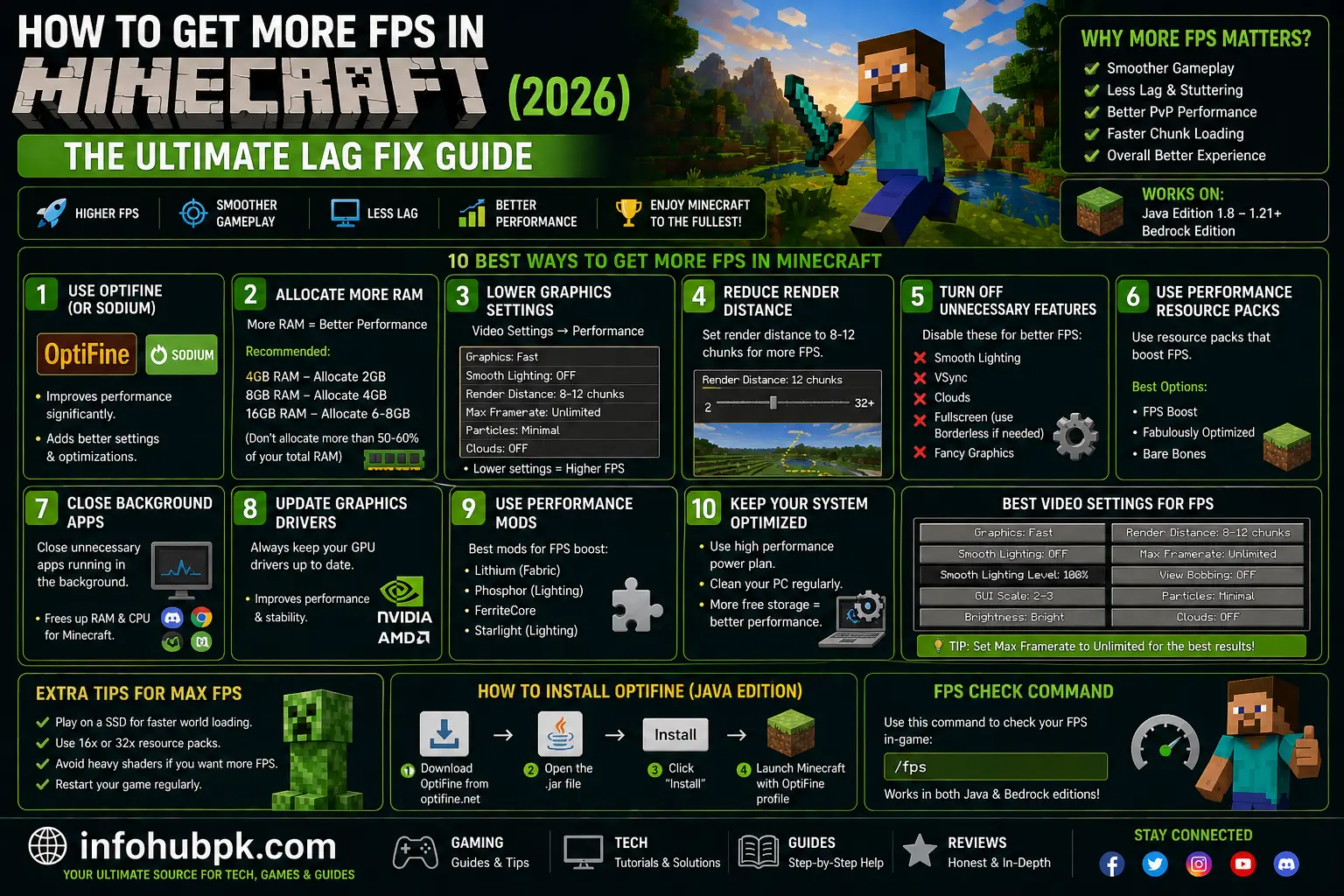
Minecraft may look like a game made of simple blocks, but it is notorious for being poorly optimized. Even if you have a decent gaming PC, you might find your FPS (Frames Per Second) dropping unexpectedly, especially in dense forests or massive bases. In 2026, with the latest 1.21+ updates adding more complex structures like Trial Chambers, the demand on your hardware has never been higher.
Low FPS doesn’t just make the game look “choppy”—it affects your gameplay. It makes parkour harder, PvP nearly impossible, and building frustrating. But don’t worry; you don’t need to buy a new graphics card to fix this.
In this comprehensive guide, I will show you how to get more FPS in Minecraft using a combination of in-game settings, Windows optimizations, and the best performance mods available in 2026. Whether you are playing on a high-end rig or a budget school laptop, these steps will help you achieve a smooth, lag-free experience.
Table of Contents
-
Understanding FPS vs. Ping (The Difference)
-
Best In-Game Video Settings for Maximum FPS
-
Top Performance Mods in 2026 (Sodium, Lithium, and More)
-
Windows & Hardware Optimizations
-
Advanced JVM Arguments for Pro Players
-
Conclusion
1. Understanding FPS vs. Ping
Before we dive into the fixes, it’s important to know what kind of lag you are facing.
-
Low FPS: The game looks like a slideshow. This is caused by your computer’s hardware (CPU/GPU) struggling to keep up.
-
High Ping (Network Lag): Blocks reappear after you break them, or players teleport around. This is caused by a slow internet connection.
This guide focuses on fixing Low FPS to make your game run faster locally.
2. Best In-Game Video Settings for Maximum FPS
The quickest way to boost performance is by tweaking the “Video Settings” menu. Open Minecraft, go to Options > Video Settings, and apply these changes:
-
Graphics: Set to Fast. (Fancy graphics add transparency and extra details that eat up FPS).
-
Render Distance: Set to 8-10 Chunks. This is the biggest FPS killer. Lowering this reduces the workload on your CPU significantly.
-
Simulation Distance: Set to 5 Chunks. This controls how far away mobs and crops “move.” Keeping it low saves a lot of processing power.
-
Smooth Lighting: Set to Off or Minimum.
-
Max Framerate: Set to Unlimited. (Or match your monitor’s refresh rate, usually 60 or 144).
-
Clouds: Set to Off.
-
Particles: Set to Minimal. (Great for reducing lag during explosions or dragon fights).
-
Entity Shadows: Set to Off.
3. Top Performance Mods in 2026
If vanilla settings aren’t enough, you need mods. In 2026, the community has moved far beyond Optifine. The “Fabric” loader is now the king of performance.
The “Holy Trinity” of Performance Mods:
-
Sodium: Replaces the entire rendering engine. It can often double or triple your FPS instantly.
-
Lithium: Optimizes the game’s internal logic (physics, AI, and block ticking) without changing gameplay.
-
FerriteCore: Drastically reduces the amount of RAM Minecraft uses, which is perfect for players with 4GB or 8GB of memory.
Bonus: Nvidium (For Nvidia Users)
If you have an Nvidia graphics card (GTX 1630 or newer), Nvidium is a miracle mod. It uses advanced “mesh shaders” to allow you to see 64+ chunks with almost zero impact on your FPS.
4. Windows & Hardware Optimizations
Your operating system can often “throttle” Minecraft to save power. Let’s stop that.
Enable High Performance Mode
-
Press the Windows Key and search for “Graphics Settings.”
-
Find Minecraft (or
javaw.exe) in the list. -
Click Options and select High Performance. This ensures Minecraft uses your dedicated GPU instead of integrated graphics.
Update Your Drivers
An outdated GPU driver is a common cause of stuttering.
-
Nvidia users: Use GeForce Experience.
-
AMD users: Use Adrenalin software.
-
Intel users: Check Windows Update for the latest “Optional Updates.”
5. Advanced JVM Arguments for Pro Players
If you followed our RAM Allocation Guide, you already know how to give the game more memory. But did you know you can optimize how that memory is handled?
Paste these “ZGC” flags into your JVM Arguments box in the launcher for smoother garbage collection (less stuttering):
-XX:+UseZGC -XX:+ZGenerational
(Note: These only work if you are using Java 21 or newer, which is standard for Minecraft 1.21).
Comparison Table: Optimization Mods vs. Vanilla
| Feature | Vanilla Minecraft | Optifine | Sodium + Iris |
| Average FPS | Low | Medium | High |
| Loading Speed | Slow | Medium | Very Fast |
| Shader Support | None | Good | Excellent |
| Compatibility | 100% | Medium | High |
6. Conclusion
Getting more FPS in Minecraft isn’t about one single “magic” button. It’s a combination of lowering your render distance, using modern mods like Sodium, and ensuring your Windows settings are optimized for gaming. By following this guide, you should see a significant jump in performance, allowing you to enjoy the world of Minecraft as it was meant to be played: smooth and immersive.
FAQs
1. Why is my FPS still low after using Sodium?
Check if you have another heavy app open in the background, like Google Chrome. Also, ensure your laptop is plugged into a charger, as “Battery Saver” mode cuts FPS in half.
2. Is Optifine better than Sodium in 2026?
Generally, no. Sodium provides better raw FPS. However, Optifine is still easier to install for beginners who don’t want to use the Fabric loader.
3. Can I use shaders and still get high FPS?
Yes, but you will need a low-end shader pack. Check our guide on Best Minecraft Shaders for Low-End PCs for options.
4. Does decreasing resolution help?
Yes. If you play at 720p instead of 1080p, your FPS will increase significantly, though the game will look slightly blurrier.
5. How much RAM should I allocate for the best FPS?
For most players, 4GB to 6GB is the sweet spot. Giving too much (like 16GB) can actually cause “lag spikes” during memory cleanup.
Internal & External Links
-
Internal: How to Allocate More RAM to Minecraft — Critical first step for performance.
-
Internal: Best Minecraft Seeds for Survival 1.21 — Test your new FPS in these beautiful worlds.
-
External: Download Sodium on Modrinth — The #1 performance mod.
-
External: Official Minecraft Hardware Requirements — Check if your PC meets the specs.
