


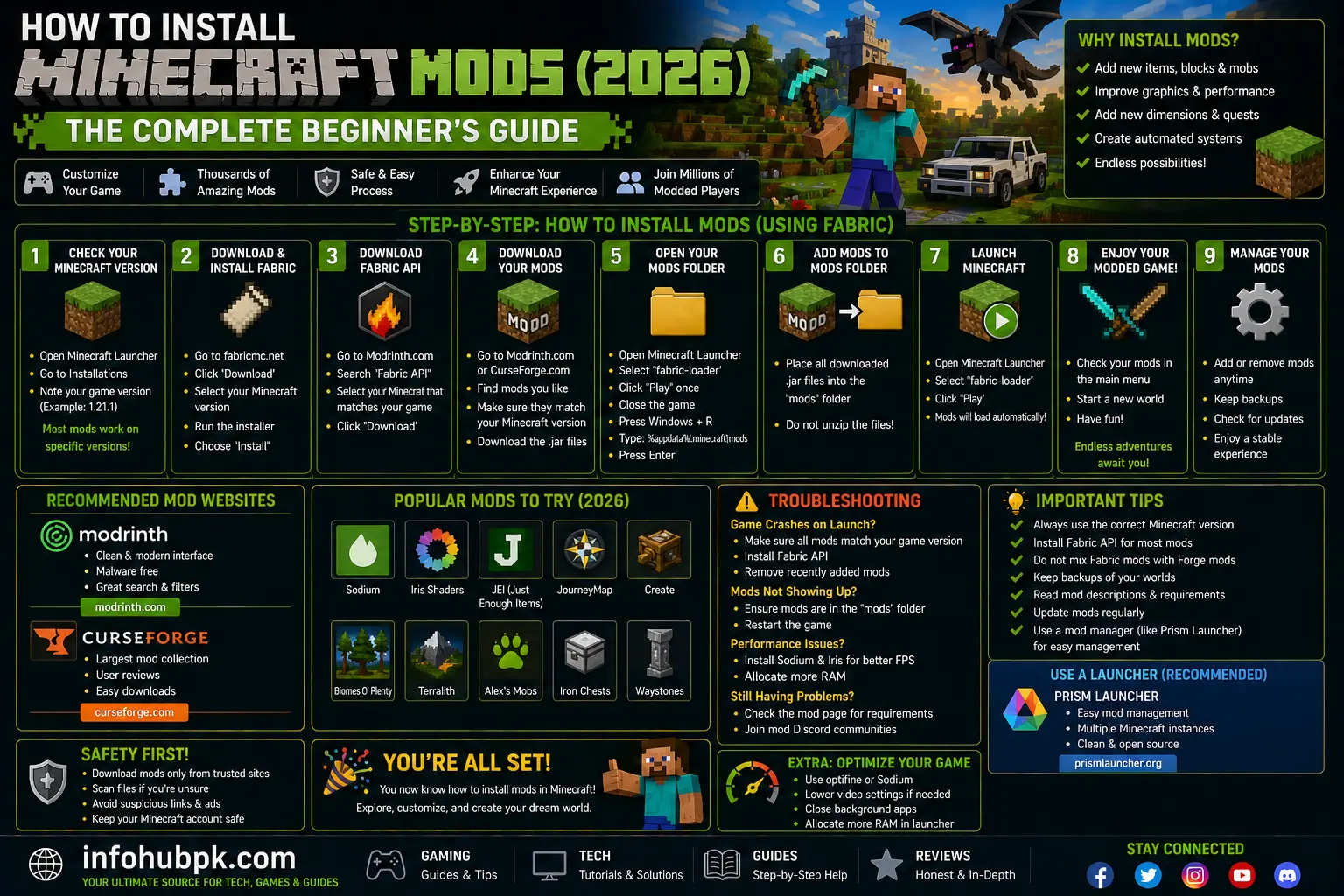
Minecraft is a fantastic game, but after a few years of playing “Vanilla,” you might start to crave something more. Maybe you want to travel to space, add 100 new animals, or simply make the game run smoother. This is where Mods come in. Modding is the process of adding community-made content to your game, and it is the reason why Minecraft has stayed popular for over a decade.
In 2026, modding has become much easier than it used to be. You no longer have to manually delete files in your game directory or worry about crashing your PC every five minutes. However, with different “Mod Loaders” like Forge, Fabric, and the new NeoForge, it can still be a bit confusing for beginners.
In this guide, I will show you exactly how to install Minecraft mods in 2026. Whether you want to install a single performance mod or a massive 300-mod pack, we’ve got you covered.
Table of Contents
-
Forge vs. Fabric: Which Loader Should You Choose?
-
Method 1: The “Manual” Way (Forge/Fabric)
-
Method 2: The “Easiest” Way (CurseForge Launcher)
-
Essential Mods for Every Player
-
How to Fix Mod Crashes
-
FAQs
1. Forge vs. Fabric: Which Loader Should You Choose?
Before you install a mod, you need a “Mod Loader.” This is a piece of software that tells Minecraft how to read mod files.
-
Forge: The “Old King.” It has been around for years and has the largest library of complex mods like industrial machines and magic systems.
-
Fabric: The “Modern King.” It is lightweight, updates almost instantly when a new version of Minecraft drops, and is famous for providing the best performance.
If your goal is to get more FPS in Minecraft, you should definitely choose Fabric. If you want massive, game-changing content, Forge (or NeoForge) is usually the better choice.
2. Method 1: The “Manual” Way (Forge/Fabric)
This method is for players who want to use the official Minecraft Launcher.
-
Download the Loader: Go to the official site for Forge or Fabric and download the “Installer.”
-
Run the Installer: Open the file and click “Install Client.” It will automatically find your Minecraft folder.
-
Open the Launcher: In your Minecraft Launcher, you should now see a new profile named “Forge” or “Fabric.” Select it.
-
Find the Mods Folder: Press
Windows + Ron your keyboard, type%appdata%, and open the.minecraftfolder. Look for a folder namedmods. (If it’s not there, just create a new folder and name itmods). -
Add Mods: Download your favorite mods (in
.jarformat) from sites like CurseForge and simply drop them into this folder. -
Play: Hit the “Play” button in the launcher!
3. Method 2: The “Easiest” Way (CurseForge/Prism)
If you are new to modding, I highly recommend using a “Third-Party Launcher.” These apps handle everything for you.
-
CurseForge App: This is the most popular tool. You just browse for a “Modpack,” click “Install,” and it handles the loader, the mods, and the versions automatically.
-
Prism Launcher: A great open-source alternative that is very fast.
Using these launchers is often more stable, but they can use a lot of system resources. If your PC feels slow while using them, make sure you know how to allocate more RAM to Minecraft within the app’s settings.
4. Essential Mods for Every Player
Regardless of whether you want “Magic” or “Tech,” every player should install these “Utility” mods:
-
JEI (Just Enough Items): Shows you the crafting recipe for every item in the game. Essential for survival!
-
JourneyMap: Adds a mini-map to your screen so you never get lost while exploring rare Minecraft seeds.
-
Sodium/Optifine: These are critical for performance. If you want to use aesthetic shaders, these mods are required.
-
Mouse Tweaks: Makes inventory management much faster and easier.
5. How to Fix Mod Crashes
Modding isn’t perfect. Sometimes your game will crash on startup. Here is how to fix it:
-
Check Versions: If you are playing Minecraft 1.21, your mods must be for 1.21. A 1.20 mod will almost always crash a 1.21 game.
-
Missing Dependencies: Many mods require a “Core” mod to work. Check the download page of the mod to see if it needs another file.
-
Duplicate Mods: Make sure you don’t have two versions of the same mod in your folder.
-
Update Java: In 2026, modern Minecraft versions require Java 21. Ensure your PC has the latest version installed.
Comparison: Mod Loaders at a Glance
| Feature | Forge | Fabric | Quilt |
| Performance | Medium | High | High |
| Update Speed | Slow | Very Fast | Fast |
| Complex Mods | Excellent | Good | Good |
| Ease of Use | Medium | Medium | Medium |
FAQs
1. Are Minecraft mods free?
Yes! The vast majority of Minecraft mods are created by the community for free. You should never pay for a basic mod.
2. Can I use mods on a server?
Yes, but most mods need to be installed on both the server and your PC. If you are hosting your own world, follow our guide on how to make a Minecraft server for free.
3. Will mods give me a virus?
Only if you download them from “fake” websites. Always use trusted sites like CurseForge, Modrinth, or the official Planet Minecraft.
4. Can I use Forge and Fabric mods together?
No. Forge and Fabric are like different languages. You must choose one and only use mods compatible with that loader.
5. Do mods work on Minecraft Bedrock?
Bedrock uses “Add-ons” instead of traditional mods. While they are similar, the installation process is different. For the full modding experience, Minecraft Java Edition is the best choice.
